
Creating professional content used to mean investing in expensive software, powerful computers, and a collection of specialized tools.
That is no longer necessarily the case.
In 2026, a creator with a reasonably capable computer can design graphics, edit professional-looking videos, clean up audio, record a podcast or tutorial, edit images, build presentations, and use AI to speed up the creative process without paying for a large software subscription.
The bigger problem is choosing the right tools.
There are hundreds of free and freemium applications available, but they are not all equally useful. Some are excellent for beginners but become restrictive quickly. Others are powerful enough for professional work but require more time to learn.
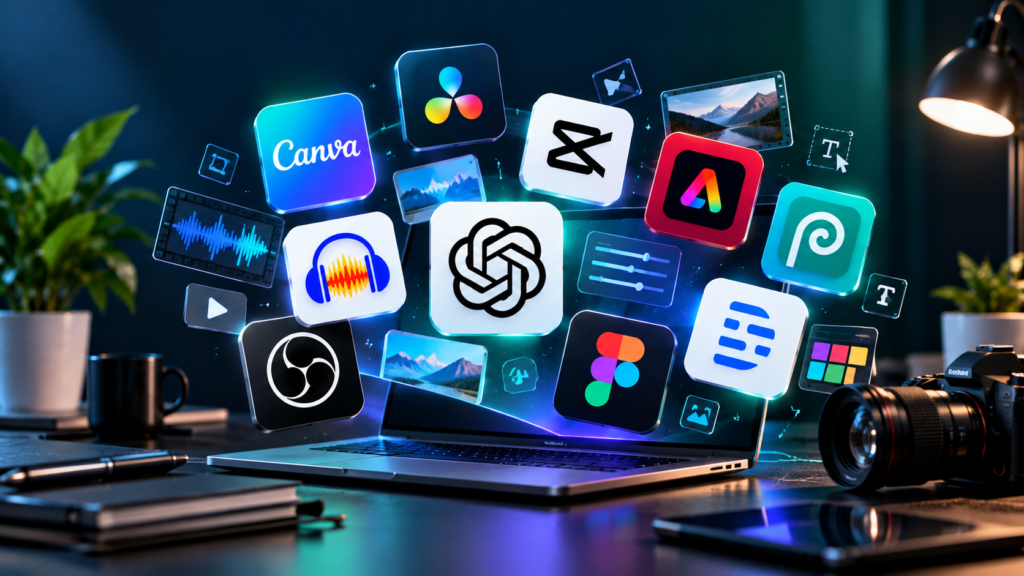
So instead of giving you another enormous list of software, this guide focuses on 10 free tools that can form a practical professional content-creation stack in 2026.
Some are completely free. Others use a free tier with limits. The important thing is that you can start using them without committing to a paid subscription.
What Makes a Free Content Tool Worth Using?
“Free” by itself does not make software useful.
When choosing a content-creation tool, consider five things:
1. What can you actually create with it?
A tool should solve a real production problem.
2. How restrictive is the free plan?
Some free tools are genuinely capable. Others put important features behind a paywall.
3. Does it produce professional results?
A free tool is valuable if the final content does not look or sound cheap.
4. How difficult is it to learn?
Professional capability is useful, but not if you need several weeks just to understand the interface.
5. Does it fit into your workflow?
The best tool is often the one that works well with the other tools you already use.
With that in mind, here are 10 worth knowing.
1. Canva
Best for: Graphics, thumbnails, presentations, social media posts, documents, and simple video content.
Canva is one of the easiest ways to create polished visual content without learning traditional graphic-design software.
You can use it for:
- YouTube thumbnails
- Instagram posts
- LinkedIn graphics
- Presentations
- Posters
- Infographics
- Lead magnets
- Simple videos
- Business documents
- Social media designs
The Free plan currently includes a drag-and-drop editor, more than 1,000 design types, a large collection of templates and creative assets, 5GB of cloud storage, and limited AI usage. Some premium assets and features remain restricted to paid plans.
That distinction matters.
You do not need Canva Pro to create good content.
The free version is already capable enough for many creators and small businesses, particularly if you are willing to build your designs around the assets that are actually available to you.
Why it is useful
Canva reduces the technical barrier between an idea and a finished visual.
You do not need to understand Photoshop layers or Illustrator paths before creating a professional-looking social graphic.
Good starting point: YouTube thumbnails, social media graphics, presentations, and simple marketing materials.
2. DaVinci Resolve
Best for: Professional video editing, colour grading, audio, visual effects, and longer-form video.
If Canva is one of the easiest design tools to learn, DaVinci Resolve is almost the opposite.
It is considerably more sophisticated.
But that is also its strength.
DaVinci Resolve 21 is available as a free download and combines video editing, colour correction, visual effects, motion graphics, and audio post-production in one application. The free version supports professional workflows, including editing up to Ultra HD 3840 × 2160 at up to 60 frames per second in supported formats.
You can use it to produce:
- YouTube videos
- Documentaries
- Interviews
- Short films
- Tutorials
- Promotional videos
- Social media videos
- Client projects
It also includes a serious colour-grading environment and Fairlight audio tools.
The free version does have limitations compared with DaVinci Resolve Studio, particularly around some advanced AI-powered features and professional formats.
But for someone who wants to learn serious video editing without immediately paying for Premiere Pro or another subscription, Resolve is a powerful place to start.
Why it is useful
You can begin with basic editing and gradually learn more advanced techniques without needing to switch applications.
Good starting point: YouTube videos, professional editing, colour grading, interviews, documentaries, and client work.
3. CapCut
Best for: Short-form video, social content, captions, quick edits, and mobile-friendly workflows.
CapCut became popular because it makes video editing relatively accessible.
For creators producing Shorts, TikToks, Reels, promotional clips, and other social-first content, it can be much faster to learn than a professional desktop editor.
Its tools include trimming, captions, effects, templates, audio editing, and AI-assisted features. CapCut continues to offer free editing capabilities, although its free and paid feature boundaries have changed over time. Some advanced features that were previously free have moved into paid access.
That makes CapCut a useful free tool, but one where you should pay attention to the current limitations of your particular plan and region.
Why it is useful
It is built around speed.
If your goal is to take raw footage and quickly turn it into a social-ready video, CapCut can reduce the amount of technical work involved.
Good starting point: TikTok, Instagram Reels, YouTube Shorts, promotional clips, captions, and quick edits.
4. Adobe Express
Best for: Quick professional graphics, social media content, video, presentations, and marketing materials.
Adobe Express sits somewhere between a simple design platform and the larger Adobe creative ecosystem.
Its current Free plan includes standard photo, video, and document editing, more than 100,000 static and video templates, thousands of Adobe Fonts, more than a million Adobe Stock assets, and 5GB of storage. It also supports scheduling to one account per social network.
That makes it useful when you want something more structured than a basic social-media design tool without moving into Photoshop or Illustrator.
You can create:
- Social media posts
- Flyers
- Presentations
- Short videos
- Marketing graphics
- Documents
- Simple branded content
Adobe Express also benefits from being connected to Adobe’s broader creative ecosystem.
Why it is useful
If you already use Adobe products, Express can fit naturally into your workflow.
It is also worth trying if you want an alternative to Canva rather than assuming there is only one design platform worth learning.
Good starting point: Marketing graphics, social posts, presentations, flyers, and quick video content.
5. Photopea
Best for: Advanced image editing directly in your browser.
Photopea is one of the more interesting tools on this list because it can feel surprisingly close to traditional professional image-editing software.
It runs directly in your browser and supports layers, masks, blending, adjustment layers, smart objects, vector graphics, and other advanced editing functions. It also supports PSD files and a wide range of other formats.
You can use it for:
- YouTube thumbnails
- Photo manipulation
- Product images
- Social media graphics
- Background removal
- PSD editing
- Layer-based design
- Image retouching
Another interesting feature is that Photopea processes files locally on your device rather than requiring them to be uploaded to its servers.
Why it is useful
If Canva feels too restrictive but Photoshop is more software than you currently need, Photopea can fill the gap.
And because it runs in a browser, you don’t need to install a large desktop application.
Good starting point: Advanced thumbnail design, image manipulation, PSD editing, and photo editing.
6. Audacity
Best for: Voice recording, podcast editing, audio cleanup, and basic audio production.
Good video still needs good audio.
A viewer may tolerate an imperfect image, but poor audio can make a video difficult to watch.
Audacity is a long-running free and open-source audio editor and recorder that works across Windows, macOS, and Linux. It supports common audio formats and provides tools for recording, editing, converting, and processing audio.
You can use it to:
- Record voiceovers
- Edit podcast recordings
- Remove unwanted sections
- Clean up audio
- Convert audio formats
- Adjust levels
- Create simple sound effects
- Prepare audio for video
It is not designed to replace a full professional music-production studio, but for spoken content it can be extremely useful.
Why it is useful
It does one important thing well: gives creators control over their audio without requiring a subscription.
Good starting point: Voiceovers, podcasts, tutorials, interviews, and spoken-word content.
7. OBS Studio
Best for: Screen recording, live streaming, tutorials, gaming content, and video production.
OBS Studio is one of the easiest tools to overlook because it does not try to make content creation look glamorous.
It simply gives you control.
OBS is free and open-source software for video recording and live streaming. It runs on Windows, macOS, and Linux and can combine multiple sources such as screen captures, windows, webcams, images, text, browser windows, and capture cards.
You can use it to create:
- Software tutorials
- YouTube videos
- Online classes
- Product demonstrations
- Gaming videos
- Livestreams
- Screen recordings
- Webcam presentations
You can also build different scenes and switch between them during a recording or livestream.
Why it is useful
If you want to record yourself explaining something on your computer, OBS can become the foundation of your setup.
And you do not have to pay for it.
Good starting point: Tutorials, livestreaming, screen recordings, software demonstrations, and gaming content.
8. Descript
Best for: Talking-head videos, podcasts, interviews, transcription, and text-based video editing.
Descript approaches video editing differently.
Instead of thinking primarily in terms of a timeline, you can edit a video by editing its transcript.
Record or import a video, let Descript transcribe it, and then remove words or sections from the transcript to make corresponding edits to the recording.
Its current Free plan includes 1 hour of media processing per month, 100 AI credits per month, 720p export, and limited access to AI features. It also allows watermark-free video export within its free-plan limits.
This makes it particularly interesting for:
- Podcasts
- Interviews
- Tutorials
- Talking-head videos
- Video essays
- Educational content
Why it is useful
If you spend a lot of time removing pauses, correcting mistakes, or cutting sections out of spoken videos, editing through text can feel much faster than traditional timeline editing.
The free plan is limited, so it is best viewed as a tool to test the workflow before deciding whether you need more capacity.
Good starting point: Talking-head videos, podcasts, interviews, and transcript-based editing.
9. Figma
Best for: UI design, presentations, graphics, diagrams, prototypes, and collaborative visual work.
Figma is commonly associated with product and interface design, but its capabilities have expanded considerably.
Its free Starter plan currently includes access to Figma Design, FigJam, Figma Slides, Figma Draw, Figma Sites, Figma Buzz, and Figma Make, although several products have usage limits on the free plan. For example, the Starter plan limits the number of files in certain areas and does not include some advanced features.
For content creators, Figma can be useful for:
- Presentation design
- Infographics
- Social graphics
- Diagrams
- Website mockups
- Content layouts
- Brand concepts
- Collaborative design
Why it is useful
Figma is particularly valuable when your content involves structure and layout, not just decoration.
For example, if you want to create a detailed infographic or design a content-heavy presentation, Figma gives you more control over layout and reusable components.
Good starting point: Infographics, presentations, UI design, diagrams, and structured visual content.
10. ChatGPT
Best for: Ideas, research assistance, scripts, outlines, captions, editing, content planning, and creative problem-solving.
A modern content workflow can involve much more than design and editing.
You also need ideas.
You need research.
You need scripts.
You need titles.
You need descriptions.
You need ways to turn one piece of content into several others.
This is where an AI assistant can become part of the creative process.
The current ChatGPT Free tier provides access to chat capabilities, web search, file and image uploads, data analysis, GPTs, image creation, and other tools, subject to usage limits that can change over time.
You can use it to:
- Brainstorm content ideas
- Create video outlines
- Improve scripts
- Rewrite captions
- Summarize research
- Analyze documents
- Generate content variations
- Build content calendars
- Develop hooks
- Repurpose existing content
The important thing is not to treat AI as an automatic content generator.
Your experience, judgment, voice, and fact-checking still matter.
Why it is useful
AI can reduce the time between “I have an idea” and “I have something I can work with.”
That can be a significant advantage when you are producing content consistently.
Good starting point: Research, ideation, scripting, editing, content planning, and repurposing.
How to Choose the Right Tool
You don’t need all 10.
In fact, using all 10 at once would probably make your workflow more complicated than necessary.
Instead, start with the type of content you want to create.
| If you want to create… | Start with… |
|---|---|
| Social media graphics | Canva or Adobe Express |
| YouTube thumbnails | Canva or Photopea |
| Professional long-form video | DaVinci Resolve |
| Short-form video | CapCut |
| Podcasts | Audacity or Descript |
| Screen tutorials | OBS Studio |
| Talking-head videos | Descript or DaVinci Resolve |
| Infographics | Figma or Canva |
| Presentations | Canva, Figma, or Adobe Express |
| AI-assisted content | ChatGPT |
You may eventually use several of them together.
For example:
ChatGPT → Canva → OBS → DaVinci Resolve
could become a complete workflow for a YouTube creator.
ChatGPT helps with the idea and script.
Canva creates the thumbnail.
OBS records the screen or presentation.
DaVinci Resolve handles the final edit.
You don’t need ten subscriptions to make that workflow work.
A Free Content-Creation Stack for Beginners
If you are starting from scratch, keep it simple.
A practical setup could look like this:
For graphics
Canva
For advanced image editing
Photopea
For short-form video
CapCut
For professional video
DaVinci Resolve
For audio
Audacity
For screen recording
OBS Studio
For AI assistance
ChatGPT
That is already enough to produce a surprising amount of professional content.
You can add Adobe Express, Figma, or Descript when you encounter a specific problem that your existing tools do not solve.
Free Does Not Mean Unlimited
There is an important distinction to understand when reading lists like this.
A tool can be free to use without giving you unlimited access to every feature.
Canva, Adobe Express, Descript, Figma, and other platforms use free plans with various limits. CapCut’s feature availability also changes as some advanced capabilities move between free access, trials, and paid plans.
That does not make these tools useless.
The question is whether the free version is enough for your current workload.
If you are creating five social posts a week, a free design tool may be more than enough.
If you are editing multiple hours of professional video every week, you may eventually need more storage, processing power, or advanced features.
Use the free version first.
Upgrade when there is a real limitation.
Don’t Build Your Workflow Around Every New Tool
One of the biggest problems creators face in 2026 is tool overload.
A new AI video editor appears.
Then another image generator.
Then another writing assistant.
Then another scheduling application.
Before long, you have dozens of accounts and no consistent production system.
You don’t need to chase every new application.
Instead, build a small stack around the content you actually produce.
For example:
Idea → Script → Record → Edit → Design → Publish
Then assign tools to those stages.
Maybe ChatGPT handles ideas and scripts.
OBS handles recording.
DaVinci Resolve handles editing.
Canva handles thumbnails.
That’s enough.
The Tool Matters Less Than the Workflow
A creator with expensive software can still produce poor content.
A creator using free tools can produce excellent work.
The difference is often the workflow.
Good content still requires:
- A clear idea
- Good research
- Strong storytelling
- Clean audio
- Useful visuals
- Good pacing
- Thoughtful editing
- Consistent publishing
Software makes those things easier.
It does not automatically provide them.
That is why learning how to use a smaller number of tools well is often more valuable than constantly searching for the next “best” application.