
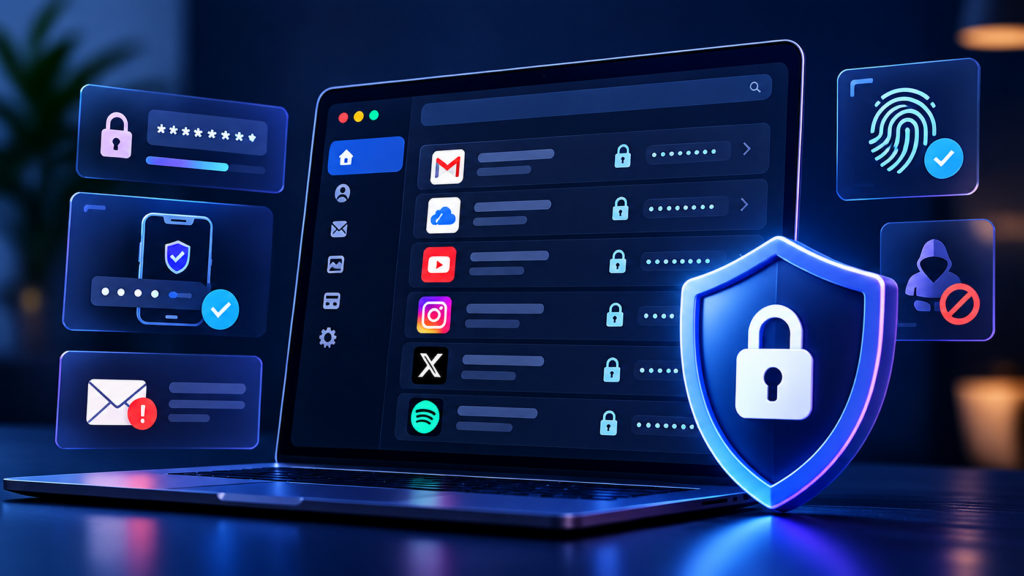
Your email, social media profiles, online shopping accounts, and other digital services hold more personal information than you might realize. If someone gains access to one of these accounts, they may be able to impersonate you, access private messages, make unauthorized purchases, or attempt to take over your other accounts.
The good news is that you don’t need advanced technical knowledge to protect yourself. A few practical security habits can make your accounts much harder to compromise.
In this guide, you’ll learn how to create stronger passwords, enable two-factor authentication, recognize suspicious messages, and secure your accounts against common threats.
1. Start With Strong, Unique Passwords
Passwords are often the first line of defence for your online accounts. Unfortunately, using the same password everywhere creates a serious risk.
Imagine that a website you use suffers a data breach. If you reuse that password for your email, social media, and shopping accounts, someone who obtains it may try it on those other services.
This is known as credential stuffing, and it is one reason password reuse is dangerous.
Here’s how to improve your passwords:
- Use a different password for every account. A breach on one service should not expose your other accounts.
- Make passwords long and difficult to guess. Randomly generated passwords or long, memorable passphrases are good options.
- Avoid personal details. Names, birthdays, phone numbers, and familiar phrases can be easier to guess than you think.
- Don’t make small variations of the same password. Adding a different number to a familiar password is not a reliable solution.
You don’t need to memorize dozens of complicated passwords. A reputable password manager can generate and securely store unique passwords for you.
The US Cybersecurity and Infrastructure Security Agency (CISA) also recommend using strong, unique passwords and a password manager as part of its online security guidance.
2. Use a Password Manager
A password manager is an application that stores your login credentials in an encrypted vault. Depending on the product, it can also generate passwords, fill login forms, and alert you to weak or reused credentials.
Instead of remembering a separate password for every website, you use the password manager to access your stored credentials.
When choosing one, look for:
- A trustworthy provider with a clear security policy
- Strong encryption and secure account recovery options
- Support for your devices and browsers
- Multi-factor authentication for your vault
- Clear backup and recovery arrangements
Protect the password manager itself with a strong, unique master password and multi-factor authentication where available.
Avoid storing all your passwords in an ordinary, unprotected document or notes app. If someone gains access to that file, they could potentially access many of your accounts at once.
3. Turn On Two-Factor Authentication
A strong password is important, but it is not always enough. Someone might steal it through phishing, a data breach, or malware.
Two-factor authentication (2FA) adds another verification step when you sign in. It is a form of multi-factor authentication (MFA), which uses more than one type of proof to verify your identity.
Depending on the service, the second factor might be:
- A code generated by an authenticator app
- A physical security key
- A passkey or supported device-based verification method
- A one-time code sent by text message
Where supported, a passkey or security key can offer stronger protection against phishing than a code sent by SMS. However, enabling an available second factor is generally better than relying on a password alone.
Start with your most important accounts: your primary email, password manager, financial services, and social media profiles.
To enable 2FA, open an account’s security settings and look for options such as Two-factor authentication, Two-step verification, or Multi-factor authentication. Follow the service’s setup instructions and store any recovery codes somewhere secure.
CISA recommends enabling MFA wherever it is available. You can read its guide to turning on MFA.
4. Protect Your Email Account First
Your primary email account deserves special attention because it often controls password resets for your other accounts.
If someone takes over your email, they may be able to request password resets, intercept security notifications, and attempt to lock you out of other services.
Secure it by:
- Using a unique, strong password
- Enabling two-factor authentication or a passkey
- Checking recovery email addresses and phone numbers
- Reviewing signed-in devices and recent login activity
- Removing unfamiliar forwarding rules or connected applications
Also secure the email account you use for password recovery. If it is poorly protected, it could become a way into your other accounts.
Think of your email account as a master key to much of your digital life. Protecting it should be one of your first priorities.
5. Learn to Recognize Phishing Attempts
Phishing is a common tactic used to trick people into revealing passwords, payment information, or other sensitive details.
You might receive an email claiming that your account will be suspended unless you sign in immediately. A text might say that a package cannot be delivered, or a direct message might promise a reward if you click a link.
These messages often create urgency to stop you from thinking carefully.
Watch for warning signs such as:
- Unexpected requests to sign in or reset your password
- Links leading to unfamiliar or misspelled domains
- Requests for passwords, verification codes, or financial information
- Unexpected attachments
- Messages pressuring you to act immediately
However, poor grammar is not a reliable way to identify every scam. Fraudulent messages can look polished and convincing, and a message that appears to come from someone you know may still be malicious.
The safest habit is to verify before you click.
If a message claims there is a problem with your account, open the official app or type the service’s known website address into your browser. Don’t use the link in the unexpected message.
Never share a one-time login code with someone who contacts you, even if they claim to be customer support.
For more advice, see CISA’s online security resources.
6. Keep Your Devices and Apps Updated
Your accounts are only part of the security picture. An outdated phone, computer, browser, or application may contain vulnerabilities that attackers can exploit.
Software updates frequently include security fixes, so delaying them unnecessarily can leave your devices exposed.
Make this a regular habit:
- Enable automatic updates for your operating system and apps.
- Install browser updates when they become available.
- Remove applications and browser extensions you no longer use.
- Download software from official stores or trusted websites.
- Use a screen lock, PIN, fingerprint, or facial recognition on your devices.
Be careful with browser extensions. An extension with excessive permissions may be able to access information you would rather keep private.
You should also avoid downloading unexpected files or installing software recommended by suspicious pop-ups. A message claiming your device is infected may itself be a scam.
7. Review Your Account Activity and Recovery Settings
Account security is not something you configure once and forget. Checking your settings occasionally can help you spot problems before they become more serious.
Look for security sections in your important accounts and review:
Signed-in devices: Remove devices you don’t recognize and sign out of sessions you no longer use.
Recent activity: Investigate unfamiliar logins, password changes, or security notifications.
Recovery information: Make sure your recovery email and phone number are current and belong to you.
Connected applications: Revoke access for apps you no longer use or don’t recognize.
Login alerts: Enable notifications for suspicious or unfamiliar sign-ins where available.
If a service supports trusted devices, review that list as well.
You don’t have to check every account daily. Start with your email and other high-value accounts, then review the rest periodically or whenever you receive an unexpected security alert.
8. Be Careful on Public Wi-Fi
Public Wi-Fi in hotels, airports, cafés, and other shared spaces can be convenient, but you should still take precautions.
Use websites and apps that protect connections with HTTPS, keep your devices updated, and avoid installing software or opening unexpected downloads while connected to unfamiliar networks.
A VPN can help protect network traffic from some forms of local monitoring, but it does not make you anonymous or protect you from phishing, malicious downloads, or fake websites.
For sensitive transactions, use a trusted network or your mobile data connection when practical. Never ignore a browser’s security warning just because you are using a familiar website.
9. Know What to Do if an Account Is Compromised
Even careful users can fall victim to scams or account takeovers. Acting quickly can limit the damage.
If you suspect someone has accessed one of your accounts:
- Use the official recovery process. If you are locked out, follow the service provider’s account recovery instructions.
- Change the compromised password. If you reused it elsewhere, change those passwords too, starting with important accounts.
- Sign out of unfamiliar sessions. Use the service’s option to log out other devices if available.
- Enable or reset two-factor authentication. Check that the recovery methods are still under your control.
- Review account settings. Look for unfamiliar devices, connected apps, forwarding rules, or messages you didn’t send.
- Warn your contacts if necessary. Someone using your account may try to scam your friends, family, or colleagues.
If you suspect malware on your device, use trusted security software and follow the device manufacturer’s guidance before entering new passwords on it.
If financial information may have been exposed, contact your bank or payment provider through its official channels and review recent transactions.
The US Federal Trade Commission provides additional steps in its guide on recovering a hacked email or social media account.
Your Online Security Checklist
You don’t have to do everything at once. Start with the accounts that would cause the most trouble if someone took them over.
- Give every important account a unique password.
- Set up a reputable password manager.
- Enable two-factor authentication or passkeys where available.
- Secure your primary email account.
- Check recovery email addresses and phone numbers.
- Install pending device, browser, and app updates.
- Review signed-in devices and connected applications.
- Learn to identify suspicious messages and links.
- Save account recovery codes securely.
Once these basics are in place, maintain them as part of your regular digital routine.
Final Thoughts
Making your online accounts more secure does not require expensive software or advanced technical skills. The most effective improvements often come from a few consistent habits: using unique passwords, enabling stronger sign-in protection, keeping software updated, and treating unexpected messages with caution.
If you only have a few minutes today, start with your primary email account. Give it a strong, unique password, enable two-factor authentication, and check its recovery settings. Then work through your other important accounts.
You cannot eliminate every online threat, but you can make it significantly harder for someone to gain access to your digital life.
Frequently Asked Questions
What is the easiest way to make my online accounts more secure?
Start by using unique passwords, enabling two-factor authentication, and securing your primary email account. These steps address several common ways attackers gain access to accounts.
Is a password manager safe to use?
A reputable password manager can help you create and store strong, unique passwords. Choose a trustworthy provider, protect your vault with a strong master password and additional authentication, and understand its recovery process.
Is two-factor authentication necessary if I have a strong password?
Yes, it is worth enabling. A strong password can still be stolen or exposed in a breach. A second authentication factor can help prevent someone from accessing your account with the password alone.
How can I tell if someone has hacked my account?
Warning signs include unfamiliar login notifications, unexpected password-reset messages, changes to recovery information, messages you didn’t send, or being locked out. Check your account’s security activity and follow the provider’s recovery instructions if anything looks suspicious.
Should I change my passwords regularly?
You generally don’t need to change a strong, unique password on a fixed schedule if there is no reason to suspect a problem. Change it promptly if it has been exposed, reused on a compromised service, or if you notice suspicious activity. Follow any applicable workplace or service-specific security requirements.
Does using a VPN make my accounts secure?
A VPN can protect some network traffic, particularly on untrusted networks, but it cannot replace strong passwords, multi-factor authentication, software updates, or phishing awareness. It is one possible security measure, not a complete solution.