
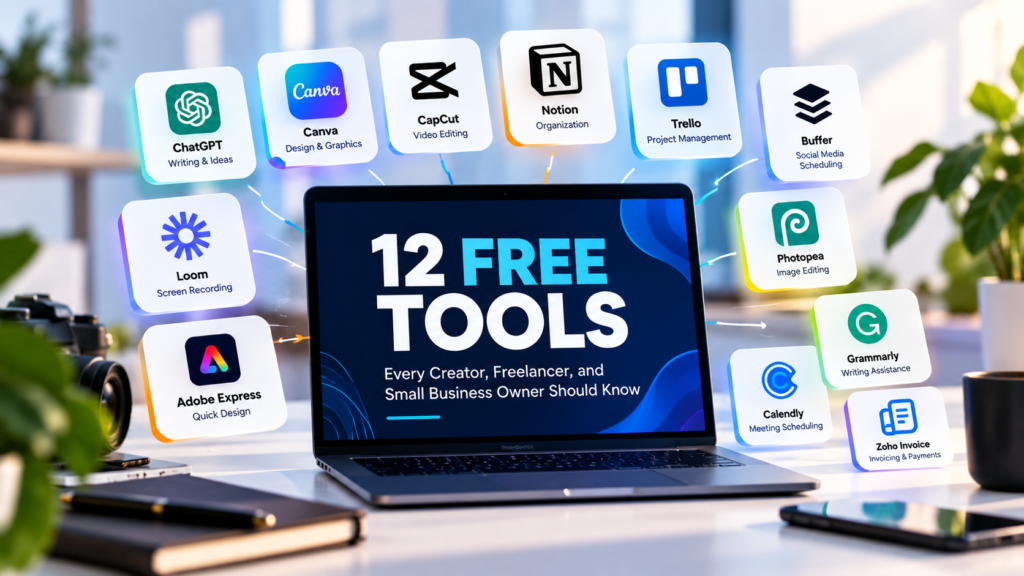
You do not need a huge software budget to run a creative business, freelance operation, or growing online brand.
A good set of free tools can help you design content, edit videos, write better, manage projects, schedule meetings, organize files, communicate with clients, and even send professional invoices.
The bigger challenge is knowing which tools are actually worth your time.
There are thousands of free apps competing for your attention, but you probably do not need dozens of them. You need a small collection that solves real problems without making your workflow more complicated.
Here are 12 free tools worth knowing if you are a creator, freelancer, consultant, or small business owner.
A quick note: “Free” does not always mean every feature is free. Several tools on this list use a free tier with limits on storage, usage, users, or advanced features. The goal here is to highlight tools that offer useful functionality without requiring you to pay from day one.
1. ChatGPT
Best for: Writing, brainstorming, research, planning, ideas, problem-solving, and everyday business tasks.
If you only add one AI tool to your workflow, ChatGPT is a useful place to start.
You can use it to brainstorm content ideas, write and improve drafts, summarize information, create outlines, analyze files, prepare client communications, develop marketing ideas, explain complicated topics, and work through business problems.
The important thing is not to treat it simply as a machine that writes things for you.
It becomes much more useful when you give it context and use it as a thinking partner.
For example, instead of asking:
“Write a social media post.”
You could say:
“I run a small video-editing business. Write a short LinkedIn post explaining three reasons businesses should repurpose long videos into short clips. Keep it practical and avoid sounding salesy.”
The second prompt gives the AI something to work with.
ChatGPT has a free tier, although usage limits and access to some features can vary over time.
Try it for: Content planning, client proposals, research, brainstorming, scripts, emails, and repetitive writing tasks.
2. Canva
Best for: Graphic design, social media content, presentations, thumbnails, flyers, and simple marketing materials.
You do not need to be a professional designer to create decent visual content anymore.
Canva’s drag-and-drop editor makes it possible to create social media graphics, YouTube thumbnails, presentations, posters, documents, simple videos, and other marketing materials without learning complicated design software.
The free plan includes a large collection of templates and creative assets, along with cloud storage and other design features. Some templates, assets, and advanced features remain reserved for paid plans.
For creators and small businesses, Canva can become a central part of the content workflow.
You could use it to create a YouTube thumbnail in the morning, an Instagram post in the afternoon, and a presentation for a client later that day.
Try it for: Social media posts, presentations, thumbnails, business flyers, lead magnets, and simple brand materials.
3. CapCut
Best for: Short-form video, social media videos, captions, basic editing, and content repurposing.
If video is part of your work, CapCut is worth knowing.
Its editor provides tools for cutting and arranging footage, adding text, transitions, music, captions, and other effects. It also includes AI-powered features designed to reduce some of the manual work involved in video production.
That makes it particularly useful for creators producing content for platforms such as YouTube Shorts, TikTok, Instagram Reels, and other vertical-video formats.
A freelancer could also use it to create a quick promotional video for a client without opening a more complicated professional editing application.
Just remember that CapCut’s feature availability can vary by region and plan, so check what is currently available in your account before building an entire workflow around a particular feature.
Try it for: Reels, Shorts, TikTok videos, captions, promotional videos, and quick edits.
4. Notion
Best for: Organization, project planning, notes, content calendars, databases, and personal knowledge management.
Notion can replace several separate organizational tools if you set it up properly.
You can use it as a content calendar, project tracker, client workspace, idea database, notes system, documentation hub, or even a simple website.
The free plan is particularly useful for individuals. It includes unlimited pages and blocks for individual use, databases, basic forms, basic sites, and Notion Calendar. File uploads on the free plan are limited in size.
A creator could build a workspace containing:
- Content ideas
- Published articles
- YouTube video plans
- Sponsorship opportunities
- Client projects
- Useful resources
- Business goals
Instead of keeping all of this in scattered documents and notebooks, you have one central workspace.
Try it for: Content calendars, client management, project planning, notes, research, and business organization.
5. Trello
Best for: Task management and visual project organization.
Trello takes a simple approach to project management: boards, lists, and cards.
You can create a board for a project and move tasks through stages such as:
Ideas → To Do → In Progress → Review → Completed
This makes Trello especially useful for people who prefer seeing their work visually.
The current free plan includes unlimited cards, up to 10 boards per Workspace, unlimited Power-Ups per board, due dates, assignees, mobile apps, and other features, with limits on some storage and automation capabilities.
A freelancer could create a board for every major client. A creator could use another board to manage the production of videos from idea to publication.
Try it for: Client projects, content production, business tasks, launches, and team collaboration.
6. Buffer
Best for: Scheduling social media content.
Creating social media content is one thing. Remembering to publish it consistently is another.
Buffer helps solve the second problem.
Its free plan currently allows users to connect up to three social channels and schedule up to 10 posts per channel at a time. It also includes features such as an AI Assistant and basic insights.
That is enough to experiment with a more organized social media workflow without immediately paying for a social media management platform.
For example, you could spend one afternoon preparing several posts and schedule them instead of manually publishing every post throughout the week.
Try it for: Social media scheduling, content planning, basic analytics, and maintaining a consistent posting schedule.
7. Loom
Best for: Screen recordings, tutorials, client updates, and asynchronous communication.
Sometimes typing a long explanation is inefficient.
Loom lets you record your screen, camera, or both and send someone a video instead.
This is particularly useful for freelancers.
Instead of writing a long message explaining how a website change should be made, you can record your screen and demonstrate it.
You could also use Loom to:
- Walk a client through a completed project
- Explain how to use a product
- Give feedback on a design
- Create a quick tutorial
- Record a software demonstration
Loom’s free Starter plan currently includes up to 25 videos per person and five-minute screen recordings.
For short explanations, that can be more than enough.
Try it for: Client communication, tutorials, onboarding, feedback, and software demonstrations.
8. Adobe Express
Best for: Quick design, social content, simple video editing, and marketing materials.
Adobe Express is another useful option for people who want professional-looking content without using more complicated Adobe applications.
The current free plan includes standard photo, video, and document editing tools, more than 100,000 static and video templates, thousands of fonts, a selection of Adobe Stock assets, and limited social scheduling. It also includes 5GB of storage.
It is particularly useful if you want a lightweight alternative for quick marketing content.
For example, you can create a social post, edit a promotional video, prepare a presentation, or create a simple branded document without opening Photoshop or Premiere Pro.
Try it for: Social graphics, promotional videos, presentations, documents, and quick marketing content.
9. Photopea
Best for: More advanced image editing directly in your browser.
Canva is excellent for quick designs, but sometimes you need more control.
That’s where Photopea becomes interesting.
Photopea is a browser-based image editor with tools for layers, masking, blending, cropping, resizing, and more advanced image manipulation. It runs locally on your device rather than requiring you to upload your files to its servers.
If you have ever opened Photoshop and thought, “I just need to edit one image,” Photopea can be a useful alternative.
You can use it for tasks such as removing backgrounds, editing thumbnails, preparing product images, manipulating layers, and working with more complex graphics.
Try it for: Image editing, thumbnails, product graphics, photo manipulation, and Photoshop-style workflows.
10. Grammarly
Best for: Editing emails, proposals, articles, captions, and other written communication.
Good writing is important when you work online.
A typo in a casual message might not matter much. A poorly written proposal, client email, website page, or business document can create a very different impression.
Grammarly’s free plan provides spelling and grammar assistance along with other basic writing support. The service works across many applications and websites, including email and Google Docs.
It should not replace your own judgment, though.
A writing assistant can identify errors, but you still need to decide whether something sounds like you and whether the message communicates what you actually mean.
Try it for: Emails, proposals, articles, website copy, captions, and professional communication.
11. Calendly
Best for: Booking meetings without endless back-and-forth messages.
If you regularly tell people, “What time works for you?”, you probably need a scheduling link.
Calendly allows people to see your available times and book a meeting without the usual exchange of messages.
Its current free plan includes one event type, one calendar connection, one-on-one scheduling, and a customizable booking page. You can host unlimited one-on-one meetings within those limits.
For a freelancer, this could be as simple as creating a link called:
Book a Discovery Call
You put the link in your email signature, website, social media profile, or proposal.
The client chooses an available time, and the meeting is added to the connected calendar.
Try it for: Client consultations, discovery calls, freelance meetings, interviews, and appointments.
12. Zoho Invoice
Best for: Freelancers and small businesses that need professional invoices.
Getting paid is part of running a business, but many freelancers still send informal payment requests through messages or manually create invoices in documents.
Zoho Invoice gives you a more structured way to handle this.
Its free invoicing offering includes professional invoices, quotes, payment reminders, recurring invoices, expense tracking, time tracking, and payment-related features. Zoho also specifically positions the product for freelancers, consultants, agencies, entrepreneurs, and small businesses.
This is one of those tools that may not feel exciting, but it can make your business look significantly more professional.
Instead of sending:
“Hello, please send payment for the design I completed.”
You can send a proper invoice with your business details, services, amount due, and payment information.
Try it for: Client invoices, quotes, recurring services, payment reminders, and expense tracking.
How These Tools Fit Together
The biggest mistake is downloading all 12 tools and then creating a complicated workflow around them.
You don’t need to use everything.
Instead, think about the job each tool performs.
| Your need | A useful starting point |
|---|---|
| AI assistance | ChatGPT |
| Graphic design | Canva |
| Video editing | CapCut |
| Organization | Notion |
| Project management | Trello |
| Social scheduling | Buffer |
| Screen recording | Loom |
| Quick marketing design | Adobe Express |
| Advanced image editing | Photopea |
| Writing assistance | Grammarly |
| Meeting scheduling | Calendly |
| Invoicing | Zoho Invoice |
You might only need five or six of these.
For example, a freelance content creator could build a simple workflow around ChatGPT + Canva + CapCut + Notion + Calendly + Zoho Invoice.
A small service business might care more about ChatGPT + Canva + Trello + Loom + Calendly + Zoho Invoice.
A social media manager might prefer ChatGPT + Canva + CapCut + Buffer + Notion.
The right combination depends on what you actually do.
Don’t Confuse Free With Unlimited
One important lesson when choosing free software is to look beyond the word “free.”
A free plan might have limits on:
- Storage
- Number of users
- Projects
- Social channels
- Scheduled posts
- AI usage
- Video length
- Export options
- File size
- Advanced features
- Branding
That does not make the tool useless.
In many cases, the free plan is enough to learn the software, build a workflow, and determine whether the tool genuinely saves you time.
Only upgrade when you have a specific reason to do so.
For example, if a free plan allows you to manage your current workload comfortably, there is little reason to pay simply because a premium plan exists.
You Don’t Need 50 Productivity Apps
There is a strange tendency in the creator and freelance world to collect tools.
You see someone recommend a new AI writing tool, then another video editor, then another project management platform, and before long you have 30 accounts and no consistent workflow.
More tools do not automatically make you more productive.
A better approach is to build a small personal software stack.
Start with one tool for each major problem:
- Create
- Organize
- Communicate
- Schedule
- Get paid
Then add another tool only when you have a genuine problem that your current stack cannot solve.
A Simple Free Toolkit for Beginners
If you’re starting from scratch, you could begin with this basic setup:
ChatGPT for thinking and writing.
Canva for graphics.
CapCut for video.
Notion for organizing your work.
Calendly for meetings.
Zoho Invoice for getting paid.
That’s already enough to build a surprisingly capable digital workflow without paying for a large collection of software subscriptions.
As your work grows, you can add tools such as Trello, Buffer, Loom, Adobe Express, Photopea, or Grammarly when they solve a specific problem.
Final Thoughts
The best free tool is not necessarily the one with the longest feature list.
It is the one that solves a problem you actually have.
A creator needs a reliable way to produce and distribute content. A freelancer needs a way to manage clients, communicate clearly, schedule meetings, and get paid. A small business owner needs systems that reduce repetitive work and keep operations organized.
You can build those systems without immediately spending hundreds of dollars on software.
Start small. Learn the tools you actually need. Build simple workflows around them. Then pay for better features when your work genuinely requires them.
Free tools are not a replacement for good systems, but they can give you enough infrastructure to build those systems in the first place.